2020 SwiftUI & UI FrameworksDesign
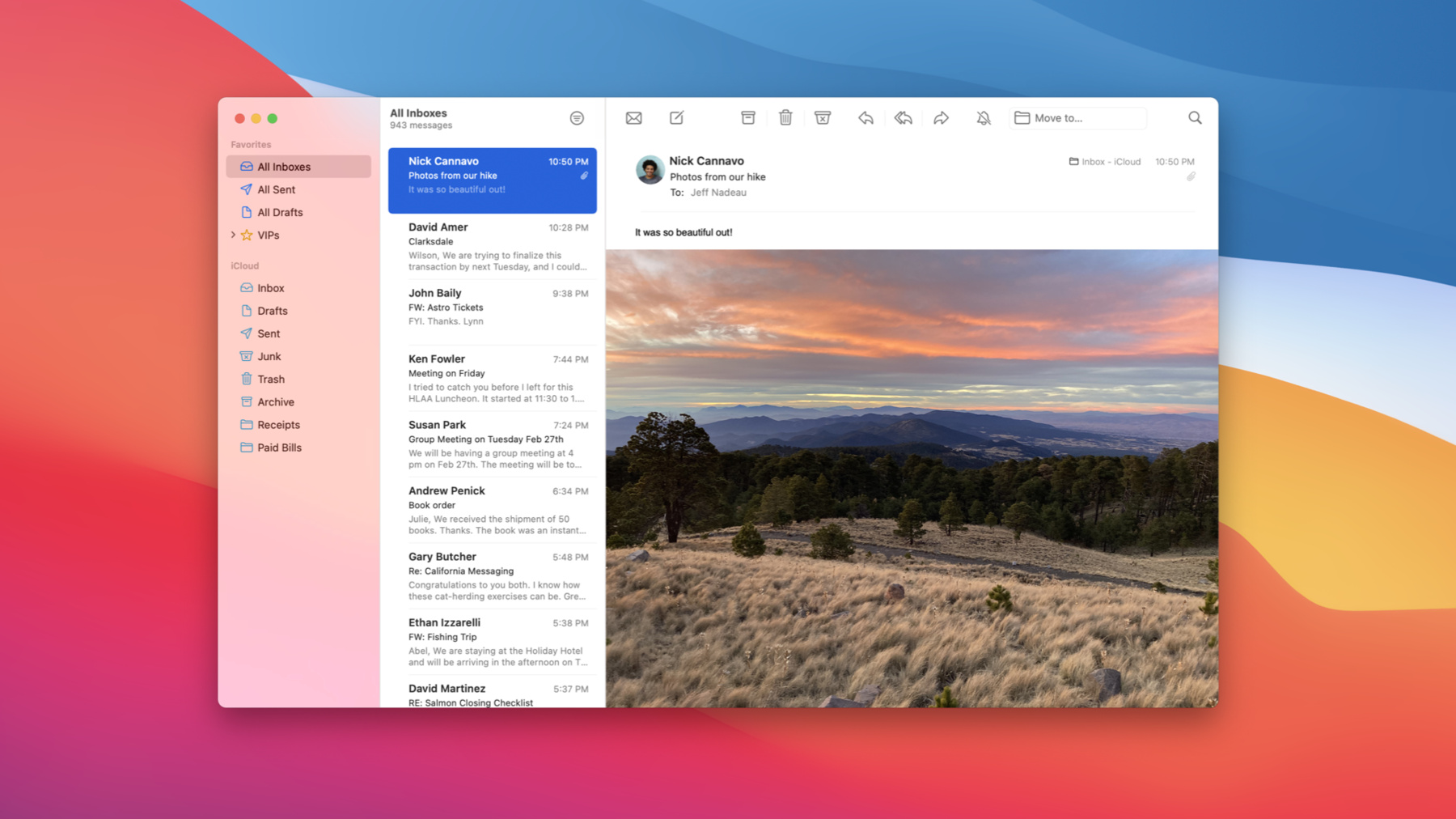
WWDC20 · 29 min · SwiftUI & UI Frameworks / Design
Adopt the new look of macOS
Make over your Mac apps: Discover how you can embrace the new design of macOS Big Sur and adopt its visual hierarchy, design patterns, and behaviors. We’ll explore the latest updates to AppKit around structural items and common controls, and show you how you can adapt more customized interfaces with just a bit of adoption work. And find out how you can incorporate custom accent colors and symbols to further personalize your app. To get the most out of this session, you should be familiar with AppKit and SF Symbols. For additional information on symbols, watch "SF Symbols 2.0”.
Watch at developer.apple.com ↗Code shown on screen · 5 snippets
Using a monochrome tint for "secondary" sidebar groups
func outlineView(_ outlineView: NSOutlineView, tintConfigurationForItem item: Any) -> NSTintConfiguration? {
  if case let sectionItem as SectionItem = item {
    /*
       This outline view uses a type called "SectionItem" to populate its top-level sections.
       Here we choose a tint configuration based on a hypothetical `isSecondarySection` property on that type.
     */
    return sectionItem.isSecondarySection ? .monochrome : .default
  }
  // For all other cases, a return value of `nil` indicates that the item should inherit a tint from its parent.
  return nil
}
Adopting NSSearchToolbarItem
var searchItem = NSSearchToolbarItem(itemIdentifier: searchIdentifier)
searchItem.searchField = searchField
Creating a split view tracking toolbar item
var trackingItem = NSTrackingSeparatorToolbarItem(itemIdentifier: identifier,
                                                  splitView: splitView,
                                                  dividerIndex: 1)
Creating a large push button
let button = NSButton(title: "Get Started",
                      target: self,
                      action: #selector(finishOnboarding(_:)))
button.controlSize = .large
Instantiating a system symbol image
/*
  Symbol image names are literal descriptions of the symbol glyph, so we must
  include an accessibility description to provide semantic meaning to the image.
 */
let newFolderImage = NSImage(systemSymbolName: "plus.rectangle.on.folder"
                             accessibilityDescription: "New Folder")
Related sessions
-
 15 min
 -
 19 min
 -
 40 min